

Introduction
In this manual, we’ll walk you through how to integrate our TTS Player on websites that are using Squarespace. If any questions arise, don’t hesitate to reach out to our team at support@trinityaudio.ai and we’ll make sure to help out.
Integration
This guide will take you through the process of integrating the Trinity Audio Player into your Squarespace website. Let's get started!
Step 1 - Select a post
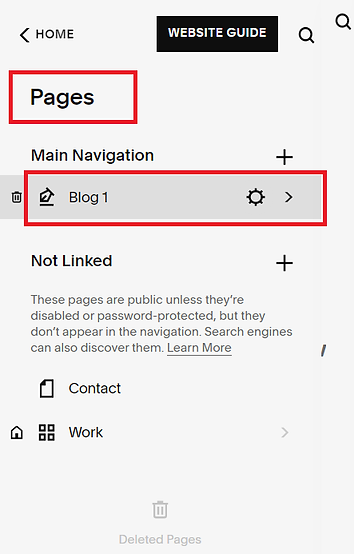
Choose the section where you want to add our Player. It's recommended to add it to your blog pages.
Step 2 -Access Section Settings
Navigate to the section settings and locate the "Advanced" option. Click on it to proceed.
Step 3 -Configure Code Injection
Within the "Advanced" settings, you'll find the "Post Blog Item Code Injection" option. Choose this to proceed.
Step 4 - Create a new TTS player

Trinity Audio plugin menu in the WordPress sidebar.

Create a player in the Trinity Audio dashboard. For more information, please visit the player implementation guide.
At one of the steps, you would be asked to provide a URL from your website. It is very important provide our team with the URL of the page that you're actually going to add the Player code into.
This allows us to perform a thorough quality assurance check and activate the player on your behalf.
Step 5 - Insert Player Script
Here's where the magic happens!
- Copy the player code from the Trinity Audio dashboard.
- Insert Player Code into the "Code Injection" section.
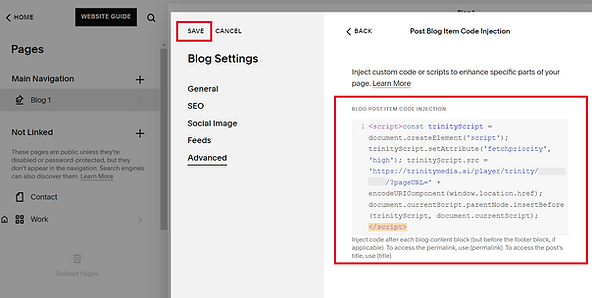
- After pasting the script, ensure you save the changes you've made. This secures your setup and ensures everything is in place as desired.
After pasting the script, ensure you save the changes you've made. This secures your setup and ensures everything is in place as desired.
Step 6 - Quality Assurance
The TTS player is now successfully added to your website, but is not visible. Our team will quickly verify the integration and activate the TTS player for you.
Conclusion
Congratulations! You've successfully integrated the Trinity Audio Player into your Squarespace website. Your content is now more accessible and engaging than ever before. If you need any further assistance or have questions, don't hesitate to reach out to our team for support via support@trinityaudio.ai.
Happy listening from all of us at Trinity Audio!
.png)

.png)