
Introduction
In this manual, we’ll walk you through how to integrate our Player on websites that are using Ghost CMS. If any questions arise, don’t hesitate to reach out to our team at support@trinityaudio.ai and we’ll make sure to help out.
Integration
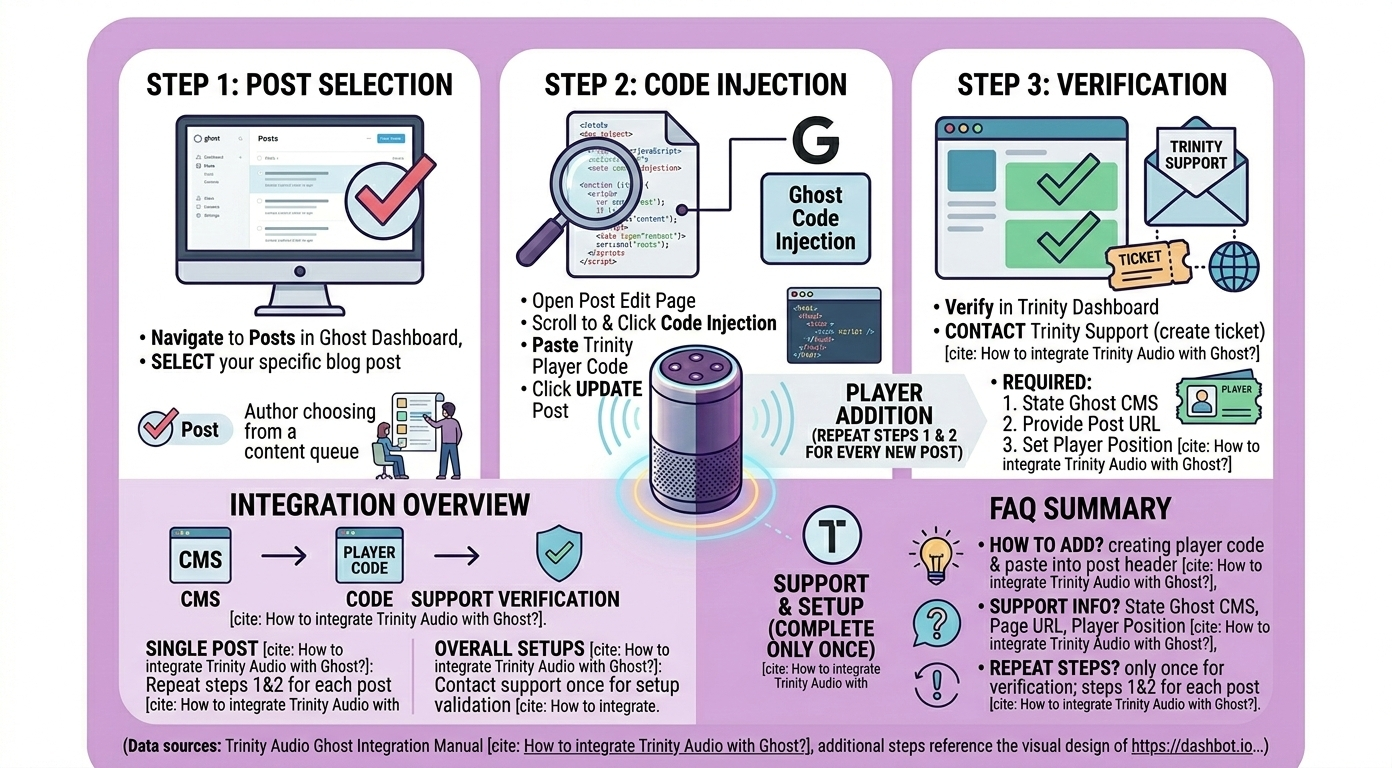
This manual would guide you on how to integrate Trinity Audio player with Ghost CMS.
There are several steps you to take in order to integrate our Player on your posts.
Ready? Let's go!
Step 1- Select a post
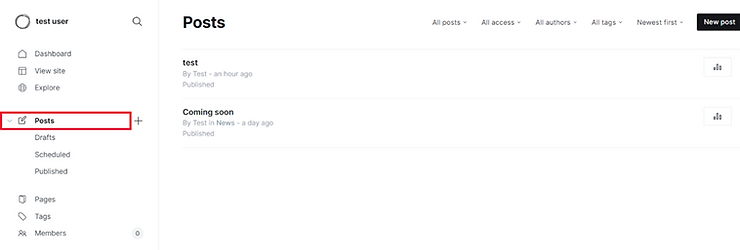
Select the post you would like to add the Trinity Audio player to.
Step 2 - Code Injection
In the post edit page:
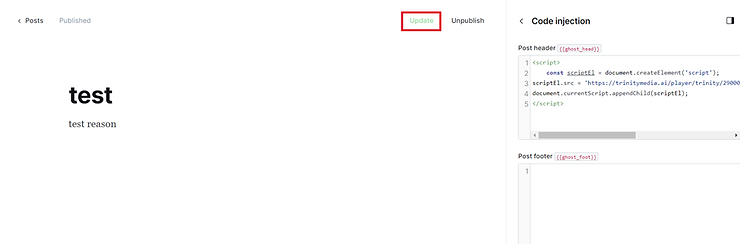
- Scroll down and click on "Code Injection"

- Create a player in theTrinity Audio dashboard. For more information, please visit theplayer implementation guide.
- Copy the player code from the Trinity Audio dashboard.
- Insert Player Code into the "Code Injection" section.
Create a player in the Trinity Audio dashboard. For more information, please visit the player implementation guide.
Copy the player code from the Trinity Audio dashboard.
Insert Player Code into the "Code Injection" section.

- Update Post. The player will not be visible until approved by Trinity Audio support team.
Step 3 – Trinity Audio dashboard
After adding the player code into the code injection section:
- Go back to the Trinity Audio dashboard and click to "Verify" the player integration.
- As Ghost CMS requires specific implementation from Trinity Audio end, please create a ticket to support with the following information:State that you are using Ghost CMS.Mention the page URL that the code was injected to.Player Position – where exactly do you wish for the player to be located on the page. We recommend it to be right before the first paragraph.
- State that you are using Ghost CMS.
- Mention the page URL that the code was injected to.
- Player Position – where exactly do you wish for the player to be located on the page. We recommend it to be right before the first paragraph.
Go back to the Trinity Audio dashboard and click to "Verify" the player integration.
As Ghost CMS requires specific implementation from Trinity Audio end, please create a ticket to support with the following information:
- State that you are using Ghost CMS.
- Mention the page URL that the code was injected to.
- Player Position – where exactly do you wish for the player to be located on the page. We recommend it to be right before the first paragraph.
State that you are using Ghost CMS.
Mention the page URL that the code was injected to.
Player Position – where exactly do you wish for the player to be located on the page. We recommend it to be right before the first paragraph.
Additional posts
In order to add the player to additional posts, repeat steps 1 and 2 for every new post. Step 3 needs to completed only once.
Summing things up
In case you have any further questions, don’t hesitate to reach out to us directly via support@trinityaudio.ai, we would be happy to hear from you (pun intended).
Happy listening from all of us at Trinity Audio
.png)
.png)