
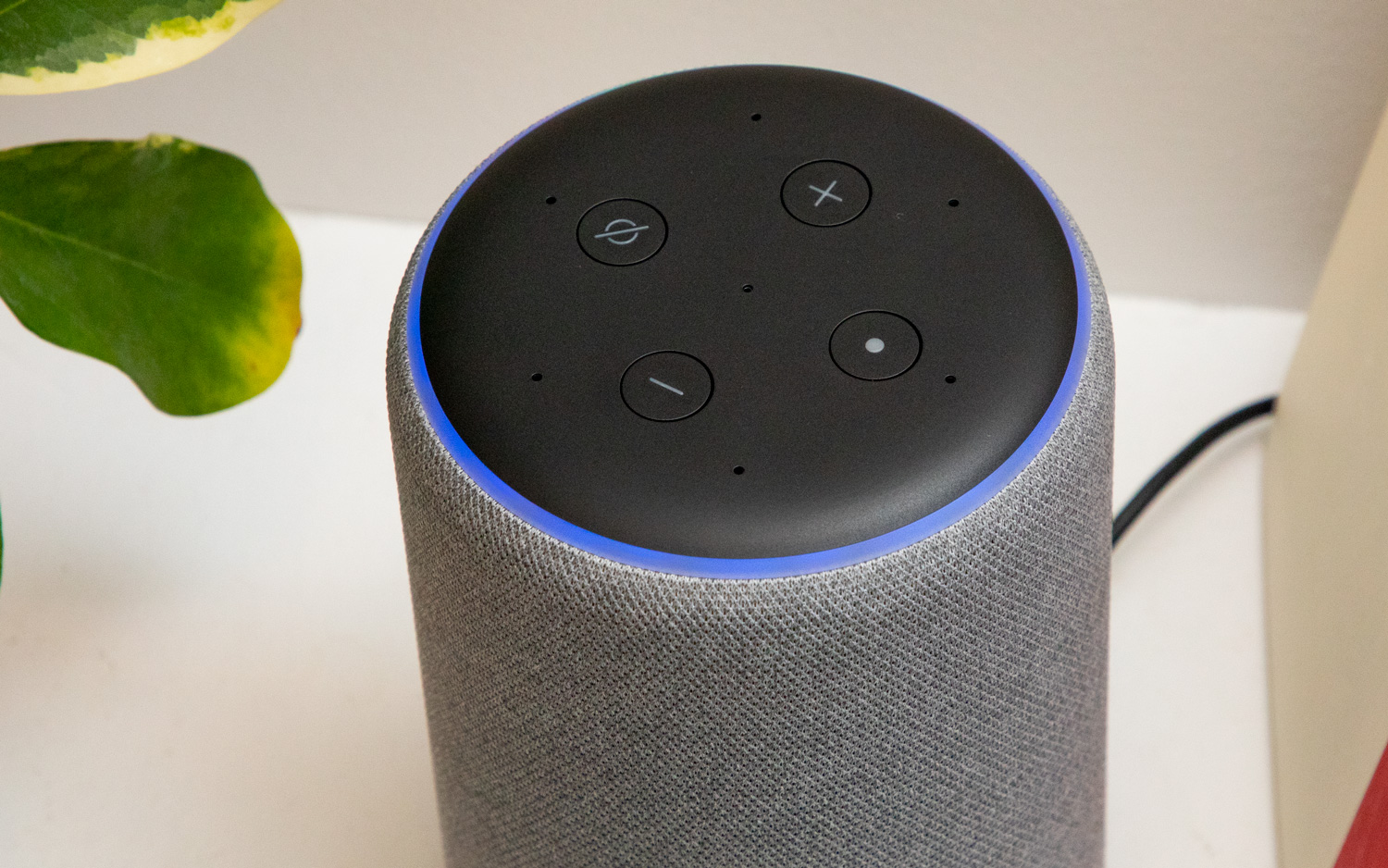
If you’ve been following our blog, you already know we have a series of blog posts called ‘How to make Alexa smarter’ where we present awesome skills in a variety of categories that make Alexa better. So far, we’ve covered the fun (best Alexa game skills), productive (best Alexa productivity skills), and healthy/fitness (best Alexa health and fitness skills) side of Amazon’s smart assistant.
With this blog post, we’re taking a slightly different approach and focusing on a different, but even more useful and more powerful feature of Alexa: routines.
What is an Alexa routine?
This is a combination of pre-set, multi-step functions that form and automate a specific command. People are creatures of habit and we try to get a lot done in a single day. Routines help you be more productive by automating certain aspects of your home instead of reaching for your smartphone most of the time. The best part about routines is that there’s no shortage of what you can do as they are triggered in three different ways:
- At a certain time;
- At a certain location;
- By a certain phrase.
At a certain time;
At a certain location;
By a certain phrase.
Therefore, you can combine these elements to create a complex routine like scheduling the turning on the air conditioner at a specific time in the morning just in the living room, followed by the news update and commute information, or stick to simple things like just turning off and on your other smart devices and triggering specific skills.
There are endless new possibilities you can add and make Alexa far smarter and more useful. In a nutshell, you are making custom commands that help you automate your compatible Alexa and smart home devices to work in unison.
Creating a routine
Without further ado, here’s how you create an Alexa routine:
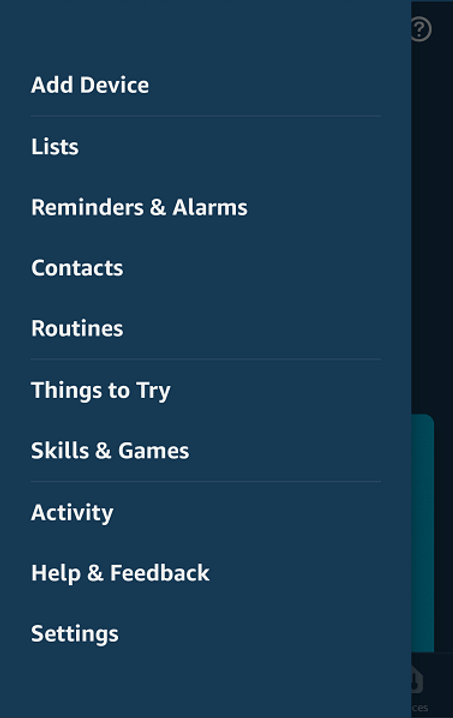
- First, open theAlexa appon your mobile device.
- In the upper left corner, click the menu icon and selectRoutines.
First, open the Alexa app on your mobile device.
In the upper left corner, click the menu icon and select Routines.
- Select the+icon in the middle.
Select the + icon in the middle.

- There, you have two options:When this happensto choose how to trigger the routine (the short command you’re going to give Alexa), andAdd actionto choose which action it completes (functions that Alexa will control when you say your designated command).
There, you have two options: When this happens to choose how to trigger the routine (the short command you’re going to give Alexa), and Add action to choose which action it completes (functions that Alexa will control when you say your designated command).
- TapWhen this happensand you’ll get six options to choose from: whether you want something to happen when you say a specific phrase, at a specific time, on a specific device and location (if you arrive or leave), when a designated alarm goes off, or when you press an Echo (or other Alexa speaker device) Button. Depending on the option you choose, the next steps will differ.
Tap When this happens and you’ll get six options to choose from: whether you want something to happen when you say a specific phrase, at a specific time, on a specific device and location (if you arrive or leave), when a designated alarm goes off, or when you press an Echo (or other Alexa speaker device) Button. Depending on the option you choose, the next steps will differ.
.png)
- For this example, we’ll useVoiceand type ‘workout’.
For this example, we’ll use Voice and type ‘workout’.
.png)
- TapNextin the upper right corner. Now we need to add an action that will be performed when we say the phrase “Alexa, workout”. TapAdd action.
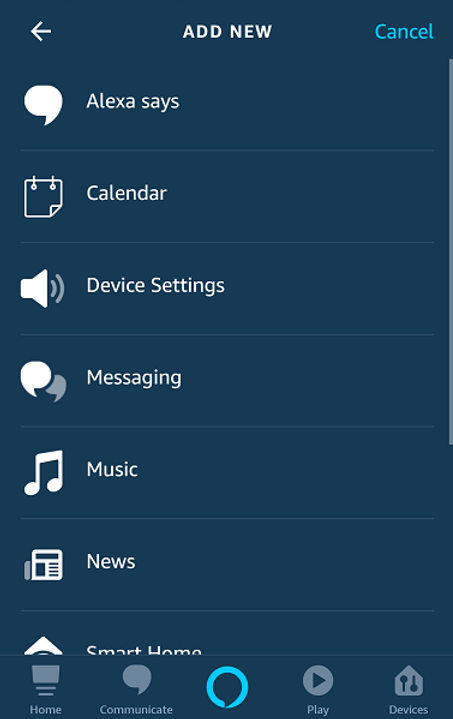
- There are 10 actions you can select for Alexa to perform: saying a phrase, checking your calendar, activating a setting from a device, receiving a message on the Alexa app, playing music, playing the news from your Flash Briefing of choice, controlling another smart home device, providing the traffic update, setting a timer, or providing the weather forecast. You can add multiple actions and reorder their positions in which Alexa will perform them by holding down the two horizontal lines next to each action and moving them up or down.
Tap Next in the upper right corner. Now we need to add an action that will be performed when we say the phrase “Alexa, workout”. Tap Add action.
There are 10 actions you can select for Alexa to perform: saying a phrase, checking your calendar, activating a setting from a device, receiving a message on the Alexa app, playing music, playing the news from your Flash Briefing of choice, controlling another smart home device, providing the traffic update, setting a timer, or providing the weather forecast. You can add multiple actions and reorder their positions in which Alexa will perform them by holding down the two horizontal lines next to each action and moving them up or down.
- We’ll selectMusic.
- Type in the name of the song you want to hear when you work out (at the moment, only one song can be added to a routine), select the available music services (you can add more), and set the duration your song will play for.
We’ll select Music.
Type in the name of the song you want to hear when you work out (at the moment, only one song can be added to a routine), select the available music services (you can add more), and set the duration your song will play for.

- TapNextto get an overview of your routine, as well as to choose from which device you want the routine to be performed.
- Click Save at the upper right corner and success! You have created a routine!
Tap Next to get an overview of your routine, as well as to choose from which device you want the routine to be performed.
Click Save at the upper right corner and success! You have created a routine!
You can see all your existing routines in the Routines page in the Alexa app, where you can edit, temporarily disable, or completely delete them. Once you create your first routine, it will be no trouble following similar steps to create other, as many as you want. Amazon will also get you started with a few routines in the Featured section which you can then easily modify to suit your needs.
.png)
Troubleshooting
For those just starting with their first routine experience, there is a little bit of help present in the Alexa app. In the app’s Menu, tap on Things to Try, right below Routines. Scroll down until you come to the icon Routines and tap it. There you will find a couple of short videos explaining what routines are and how you can set them up.
Now, Alexa routines can still be a bit iffy sometimes and may not work as expected in some cases (particularly involving newer devices that haven’t yet been added to the routine framework) although they work fine most of the time. This is perfectly understandable since there are countless scenarios you can create and basically you have all the freedom in the world to customize and automate various smart home devices and services.
If you do hit a snag, your best for some troubleshooting will be Amazon’s Smart Home forum. With more than a thousand different topics and daily engagement, this online community is intended for users helping other users troubleshoot as best as they can. Developers usually aren’t around so if you’re looking for their feedback, the best way to go about it would be to send your request through the feedback section in the Alexa app.
In spite of some limitations, routines continue to get better on a regular basis, with Amazon adding new features with each update. For example, one of the latest additions are getting email updates through a linked Gmail or Outlook account, and setting a routine for sunrise and sunset instead of a specific time. As Alexa extends its ability to automate an increasing number of tasks, there’s bound to be more fun to experiment with routines and do even more. We can’t wait!
Make sure you’re following me on Twitter for ongoing updates, tips, and industry takeaways!
SOUNDS GREAT, RIGHT?!
Subscribe to our newsletter for industry updates and subscriber only content
We promise not to spam
- *
*
- *
*
Your information will be handled as detailed in our privacy policy
- Phone
Phone
This field is for validation purposes and should be left unchanged.
.png)

.png)