

We’re excited to announce that we’ve launched a new feature called Lexicons.
Up until now, publishers and content creators had to fix the pronunciation for specific words every time they submitted a new article. It was repetitive, time-consuming, and frustrating.
We listened (hey it’s what we do best) and set off to develop a better editing experience.
We’re now rolling out the Lexicons feature.
From now on it’s possible to edit and save words used often, and we’ll know to use the corrected version every time.
For the convenience of our current client, below is a quick walk-through on how to use the new feature (though we think you’ll find it intuitive).
Setting up a new Lexicon:
Under the configuration tab in the menu, you’ll find the Lexicons option:

On the Lexicons page, you’ll see a list of all the Lexicons configured to your account.
Click on Add Lexicon at the top left of the screen:

The following window will appear:

The language field indicates the language used in this Lexicon.
Important - Each lexicon will include all the words you wish to change for this language. You can create one lexicon for each language you use, and it will include all the words related to this language.
Once you click "create" you can start adding words to your lexicon.
Adding words to a Lexicon
Once you created a lexicon, you can start adding words in the next window -
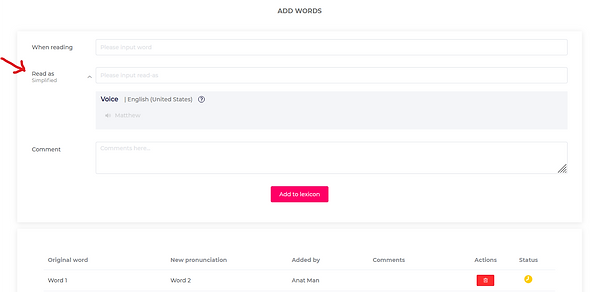
In this pop-up, you can add all the words you wish to change:
- When reading:indicate the word of which you would like to change the pronunciation. Here you will also be able to hear the word you added to make sure the requested change is as desired.
- Read as: indicate the way you would like it to be read.In the drop-down menu you will find 2 options to set the desired pronunciation:Simplified - reads the word exactly as it is written.Advanced - Use phonetic pronunciation. This means that the words will be read out loud as they sound, not as they are written.In the tooltip, you will find a link to the Wikipedia page with a phonetic pronunciation guide for the language you selected before.You can listen to the requested change in the word using all the voices you are using in the selected language to make sure it is read properly.Comment: leave a note to yourself and the team on why you made the change.
- Simplified - reads the word exactly as it is written.
- Advanced - Use phonetic pronunciation. This means that the words will be read out loud as they sound, not as they are written.In the tooltip, you will find a link to the Wikipedia page with a phonetic pronunciation guide for the language you selected before.
- In the tooltip, you will find a link to the Wikipedia page with a phonetic pronunciation guide for the language you selected before.
- You can listen to the requested change in the word using all the voices you are using in the selected language to make sure it is read properly.
- Comment: leave a note to yourself and the team on why you made the change.
When reading: indicate the word of which you would like to change the pronunciation. Here you will also be able to hear the word you added to make sure the requested change is as desired.
Read as: indicate the way you would like it to be read.
In the drop-down menu you will find 2 options to set the desired pronunciation:
- Simplified - reads the word exactly as it is written.
- Advanced - Use phonetic pronunciation. This means that the words will be read out loud as they sound, not as they are written.In the tooltip, you will find a link to the Wikipedia page with a phonetic pronunciation guide for the language you selected before.
- In the tooltip, you will find a link to the Wikipedia page with a phonetic pronunciation guide for the language you selected before.
- You can listen to the requested change in the word using all the voices you are using in the selected language to make sure it is read properly.
- Comment: leave a note to yourself and the team on why you made the change.
Simplified - reads the word exactly as it is written.
Advanced - Use phonetic pronunciation. This means that the words will be read out loud as they sound, not as they are written.
- In the tooltip, you will find a link to the Wikipedia page with a phonetic pronunciation guide for the language you selected before.
In the tooltip, you will find a link to the Wikipedia page with a phonetic pronunciation guide for the language you selected before.
You can listen to the requested change in the word using all the voices you are using in the selected language to make sure it is read properly.
Comment: leave a note to yourself and the team on why you made the change.
Approving Lexicons:
Each word you add needs to be reviewed and approved by our support team to avoid pronunciation issues that will affect your entire audio library. The status of new words will be “Pending” and marked with a Yellow clock icon, that will turn Green once approved, and Red if not approved by our team.
You can delete words you added to the lexicons by clicking the red trash can icon.
A few things worth knowing:
1. You can know what Lexicon is connected to what channel from the channel configuration tab, as seen here:

2. The channel must have a language configured (under Audio creation defaults) in order to avoid conflicts.
If you have any questions, please reach our support at support@trinityaudio.ai .
That just about wraps things up. We truly believe that this feature will help publishers and content creators turn their content into audio in a more accurate and efficient way. We’re working around the clock to improve and will keep at it!
Please drop us a line of feedback (good OR bad!) so we’ll know if there’s anything you’d like us to work on, add, improve, or simply tell us we rock. 😉
Viva la audio revolution!
.png)

.png)