
Introduction
Thank you for taking an interest in the Trinity Audio Wix plugin. In this manual, we’ll walk you through how to install and use the plugin on your site. If you have any questions, please don’t hesitate to reach out to our team at support@trinityaudio.ai and we’ll make sure to assist.
Step 1 - Installation
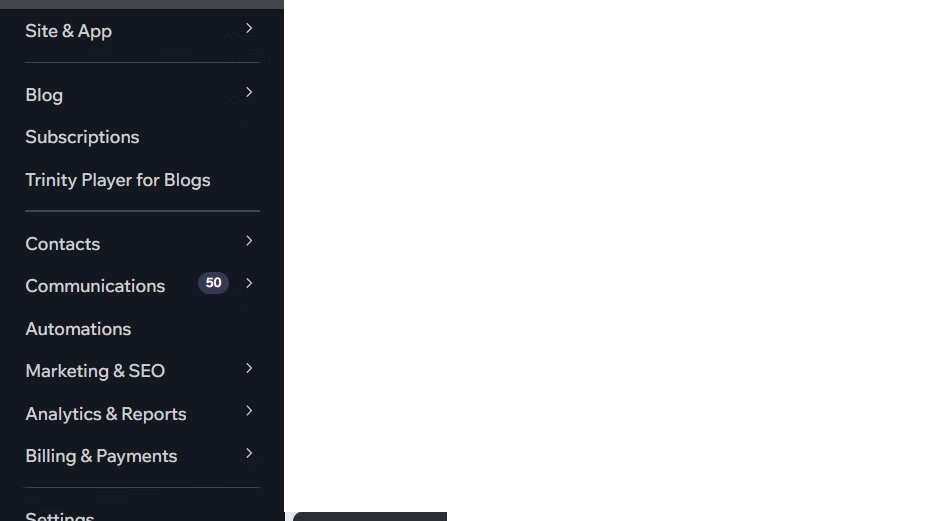
- First, log in to your Wix dashboard and navigate to “App Market Website”:

- In Wix App Market, search for "Trinity Player", and click “Add to Site”:

- Select your site. Please note that the app is only supported in Premium sites:

- Review the permissions and click “Add to Site”:

* Embedded scripts permission is needed for the app to insert the script into your Wix website and by doing so, load the TTS player to the page.
* Basic info (your email and website domain) is needed for registration.
- Accept Terms of Service in order to register:

Once you check it, hit the register button and let’s get started!
- On Successful registration screen click “Go to Dashboard”:

Step 2 - Setup
- After the plugin is installed successfully, you will direct to the player settings page:

As you can see, there is a status bar notification at the top of the page mentioning: “Your Trinity Audio Player is not active yet! Please review the settings and click Save button to activate it”.
The reason you see it is that you have yet to configure your settings and update your posts. Once the integration is complete, this message will disappear and a confirmation notification mentioning “settings saved” will appear.

The banner will disappear once your changes are saved, and that indicates that the installation was successful. Congratulations! Now the player should appear on your website in the next 5 minutes!
Here is an example of how it should look like:

Step 3 - Settings
General configuration
Language - Indicate the default language that your posts are written in. Gender - Choose the default gender voice for the content.

Player settings
Display Powered by Trinity Audio: select this option if you would like to give us credit for the player. This will also help your colleagues (aka other content creators) reach out to us easily once they see the player on your site, get excited and want to add it to their site as well.

Account key
By signing up for the Trinity Audio Dashboard, you'll gain access to a range of features, such as -
- Select from a wide range of our premium voices
- Customize the player theme
- Sharing functionality
- Playlist management and content distribution
and more!
Getting started is easy:
- Sign up: You can sign up on the Trinity Audio Dashboard. It's a quick and straightforward process.
- Link your Wix App: Once registered, you'll need to link your Wix app to the Trinity Audio Dashboard.
Here's what you need to do:
After registration, you'll receive an account key, which you can locate on your Trinity Audio Dashboard. Simply insert this key in the designated section of your Wix menu:

Once you've successfully registered and linked your app, you'll be able to manage your Player Settings directly from the Trinity Audio Dashboard, giving you more control and flexibility.
Contact us
Contact us with any questions or issues you encounter and we’ll do our best to get back to you as soon as possible.

Summing things up
If you need any further assistance or have questions, don't hesitate to reach out to our team for support via support@trinityaudio.ai.
Happy listening from all of us at Trinity Audio! <3
.png)

.png)