Wordpress Plugin: Manage posts in bulk

Wordpress Plugin: Manage posts in bulk

Introduction

In this manual, we’ll walk you through how to update your posts and control which ones would have the player on. If any questions arise, don’t hesitate to reach out to our team at support@trinityaudio.ai and we’ll make sure to help out.

Updating based on publish date

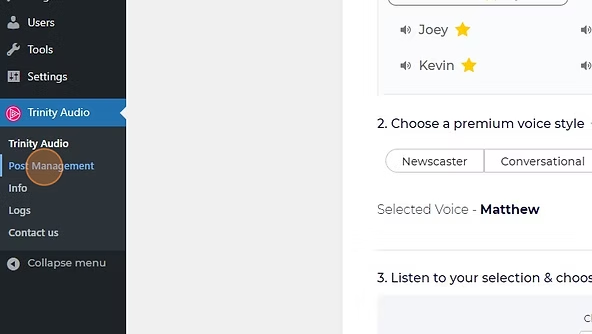
1. Click "Post Management":
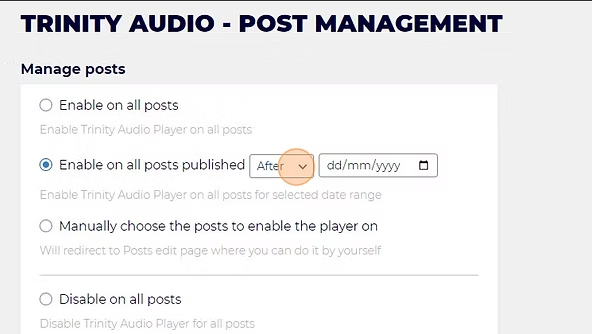
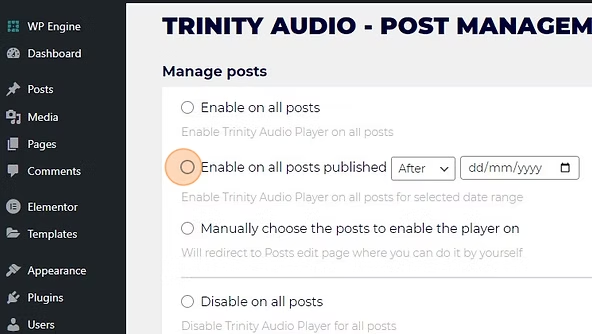
2. Click the "Enable on all posts published After / Before Date" field.
enable plgins

3. Click this dropdown.

trinity audio - post managemt

4. Choose Before or After.

trinity date post management

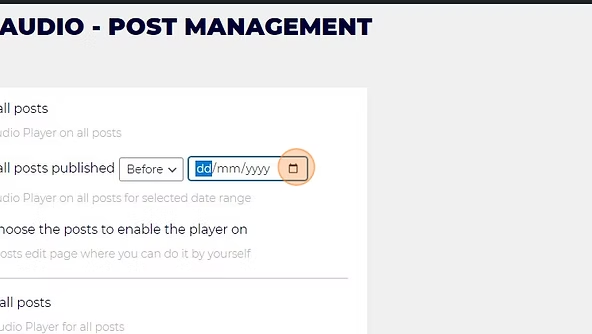
5. Click this date field.

clickthisielddate

6. Choose the relevant date.

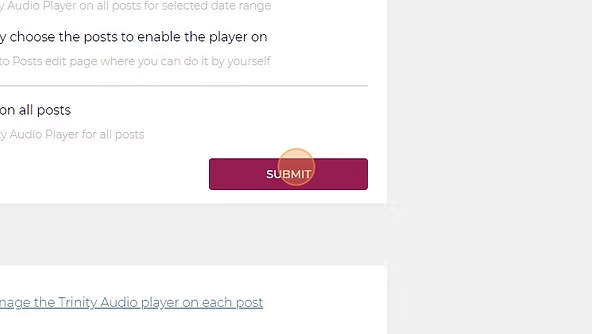
7. Click "SUBMIT".
red button

Selecting posts manually

o

Step by step instructions

1. Click "Post Management".

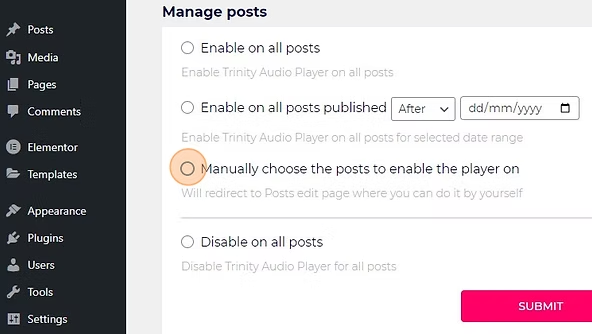
2. Click the "Manually choose the posts to enable the player on" field.
post bulk action

3. Click "SUBMIT".

button red with submit text

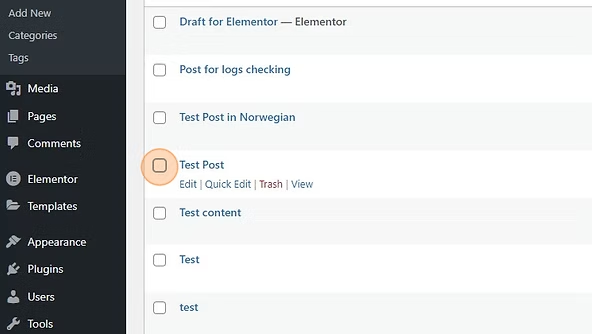
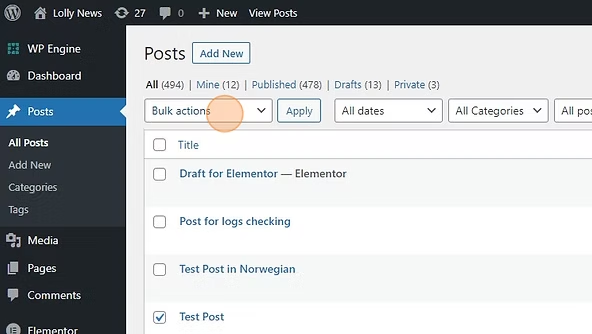
4. Select relevant posts.

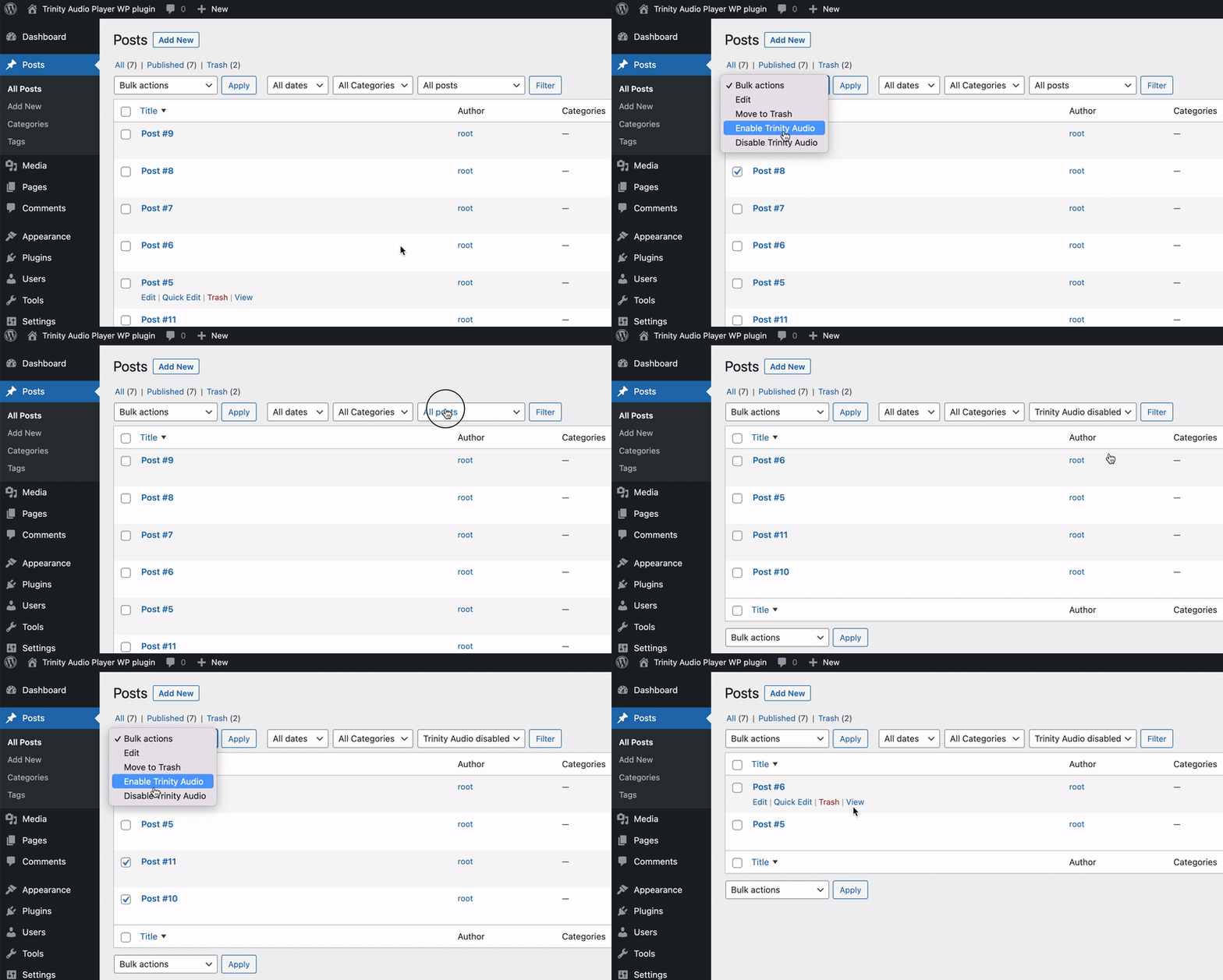
5. Click the "Bulk Actions" dropdown.
trinity audio bulk actios

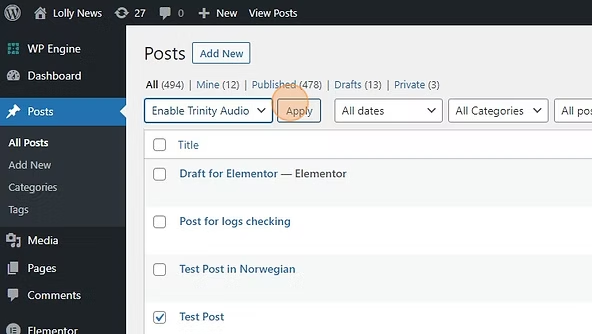
6. Choose "Enable Trinity Audio".

7. Click the "Apply" button.
Apply entry

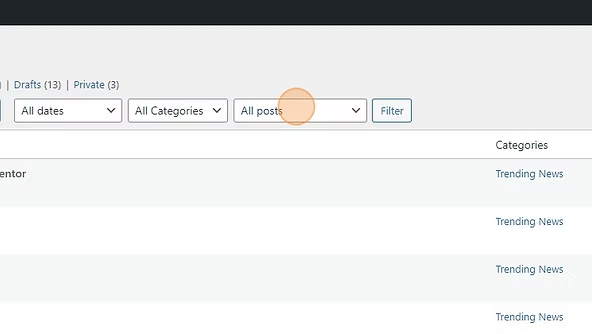
8. Click the "All posts" dropdown.

all post drop down

9. Choose "Trinity Audio disabled".

10. Click the "Filter" button.
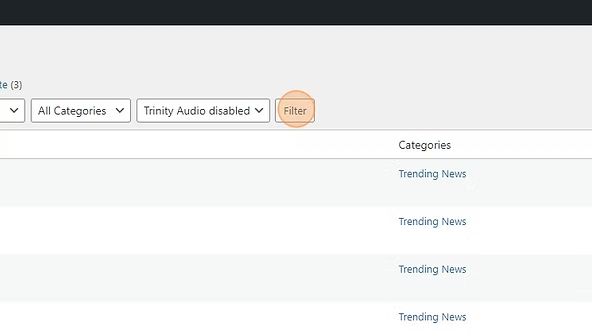
click filter button

11. Select relevant posts and go back to step 6.

FAQ

How can I enable Trinity Audio on posts based on publish date?

You can do this from Post Management. Select the option “Enable on all posts published After / Before Date”, choose Before or After from the dropdown, pick your preferred date, and click SUBMIT. This will apply Trinity Audio to posts based on the date you selected.

How do I manually choose which posts should have Trinity Audio enabled?

Go to Post Management and select “Manually choose the posts to enable the player on”, then click SUBMIT. From there, select the posts you want, choose “Enable Trinity Audio” from the Bulk Actions dropdown, and click Apply.

How can I find posts that don’t have Trinity Audio enabled yet?

In the posts list, use the “All posts” dropdown and select “Trinity Audio disabled”, then click Filter. This will show only posts where Trinity Audio is currently disabled, so you can select them and enable the player in bulk.

Ready to Monetize Your Audio?

Discover how TrinityAudio can unlock new revenue streams for your content.

Get a Demo